


Pixel Studio: pixel art editor
4.64.18K Reviews
App Specs
- Version
- 5.51
- Updated On
- License
- Free
- Downloads
- 5,000,000+
- Developer
- Hippo Games AM
- Categories
- Art & Design
- Platform
- Android, iOS
Screenshots
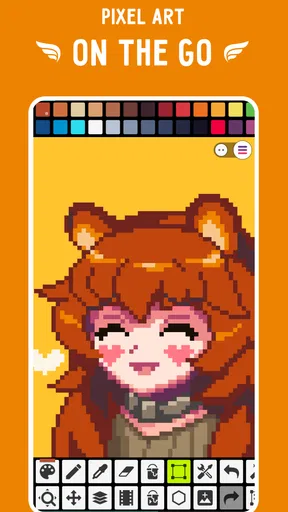
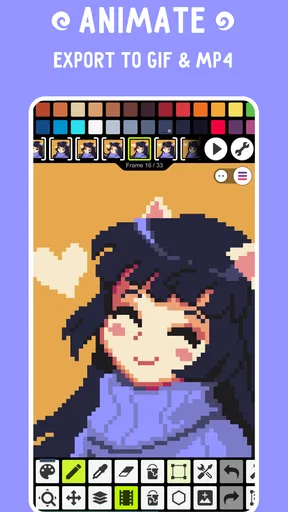
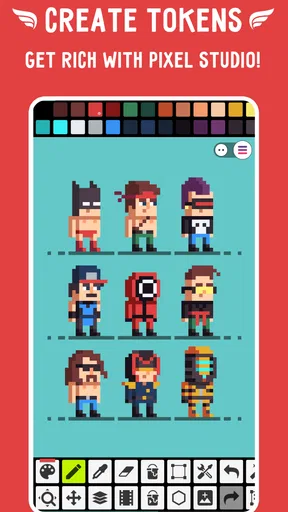
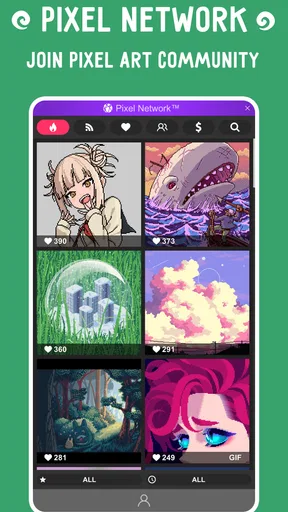
 Analysis by AppCompare
When a pixel-art project gets stuck, the problem is not always a missing tool. Sometimes the canvas is awkward to work on, a frame is hard to read, or an export does not fit the place you intend to use it. I find Pixel Studio most useful when I treat it as a focused drawing workspace rather than expecting it to behave like a full desktop art suite. That distinction makes it easier to judge whether it suits the way you want to create.
Getting Started: First Impressions
So, once you’ve downloaded Pixel Studio, you’re greeted with a clean and simple interface. It’s not intimidating, which is exactly what you want when you’re about to unleash your creativity. The app is available on both Android and iOS, so no one’s left out of the pixel party. Setting it up is a breeze, and you’re not bombarded with ads, which is a big plus.
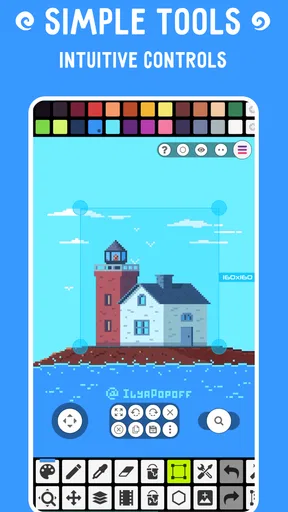
Right off the bat, I noticed how user-friendly it is. Whether you’re a seasoned pixel artist or just starting out, the minimalistic design makes navigation a walk in the park. No clutter, just what you need to get those creative juices flowing.
The Features That Shine
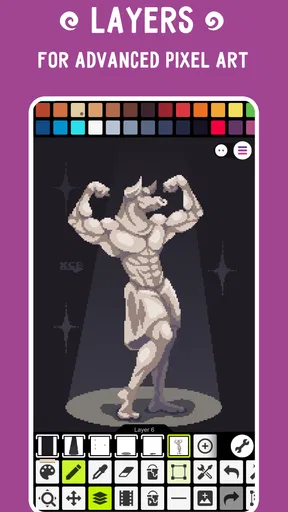
Now, let’s talk features. Pixel Studio is packed with tools that pixel artists will love. You’ve got layers, which are crucial for complex designs. The layer management is intuitive, allowing you to stack and organize your work without any hassle. It’s like having a mini Photoshop in your pocket.
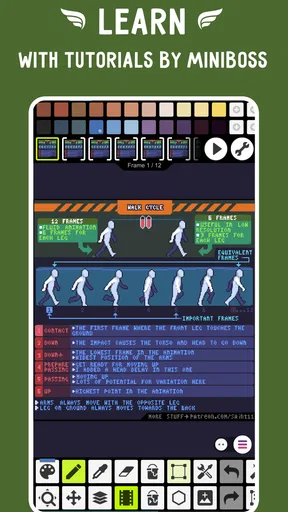
One of my favorite tools is the animation feature. Yes, you can bring your pixel art to life! This is a game-changer for those looking to create sprite sheets for games or funky little animations for social media. The onion skinning feature helps you keep track of previous frames, making the animation process smooth and precise.
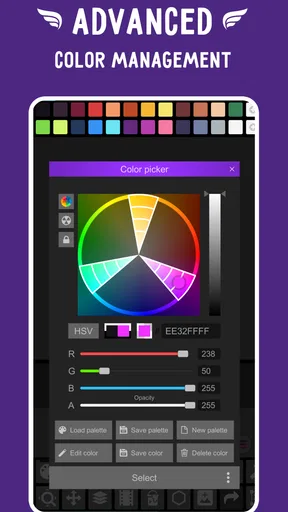
Let’s not forget the color palette options. The app provides a wide range, but you can also create custom palettes. This is fantastic if you’re working on a project with specific color requirements. And for those who love sharing their work, Pixel Studio supports exporting in various formats, including GIFs and PNGs, so you can easily show off your masterpieces.
Diving Deeper: What’s the Experience Like?
Using Pixel Studio feels intuitive. The app doesn’t require a steep learning curve, which is something I genuinely appreciate. The brush settings are customizable, allowing you to choose different sizes and shapes, and there’s even a symmetry tool for creating perfectly balanced designs.
Worth Reading Before You Choose

EA SPORTS FC Mobile 26 Is a Bigger Football Game, but It Takes Time

Flipboard Shows What News Apps Must Do Beyond the Feed

Switching to Android Auto Means Rethinking Your Driving Routine

Google Calendar Makes a Crowded Week Easier to Manage

Ludo King Makes the Most of the Minutes Between Plans

Baby Panda World Brings Quick Play to Modern Phones, but Its Game Library Feels Busy
I spent some time playing around with the zoom feature, which lets you get up close and personal with each pixel. This is crucial for fine details, and the app handles it without lag, which is impressive. The undo and redo options are right where you need them, saving you from any accidental mishaps.
When a project feels stuck
My most practical advice is to decide what the artwork is for before adding detail. A tiny character meant for a game needs a readable silhouette first; a looping social post needs a clear action that still makes sense when it repeats. I start with a limited palette and a rough shape, then add highlights only after the design reads at its intended size. That saves time spent polishing pixels nobody will notice.
For animation, I work out the key poses before filling in every in-between frame. Onion skinning is useful for spotting a jump or wobble, but it can also tempt you to make each frame too similar. I check the sequence at normal viewing size, not only zoomed in, because a movement that looks tidy pixel by pixel may feel stiff when played. Small changes to a pose can matter more than adding extra detail.
Layers are helpful when separating a character from a background or keeping construction marks away from finished work. I try to name or organize them in a way that makes sense to me as the file grows; otherwise, the convenience of layers can turn into a hunt for the right element. Custom palettes also work best when I choose colors with a purpose, such as keeping shadows consistent across several sprites, rather than adding many near-identical shades.
Setup checks before drawing
Before investing time in a larger piece, I make a small test project. I try a brush, zoom in and out, add a layer, undo a stroke, and export a simple image. That quick check helps me learn where the controls are and whether the result looks right outside the editor. If the art is for a specific project, I also decide its intended dimensions and destination first, rather than drawing freely and discovering later that I need to rebuild the composition.
Pixel work is especially sensitive to accidental scaling. If an exported image looks blurred elsewhere, I first check how it is being displayed or resized; smooth-looking scaling can soften crisp edges even when the original art is clean. A PNG is a sensible choice for a still image, while a GIF suits a short animation. I preview the exported file in the place I plan to use it, because the editor’s zoomed canvas is not a reliable stand-in for every screen or platform.
Workflow recovery and everyday use
A realistic use for the app is sketching a small icon during a commute, then refining it later at home. I would keep the first session simple: block out the silhouette, settle on a few colors, and save a clear version before experimenting. In a second session, I can try alternate expressions or a short animation without losing track of the original design. The key is to avoid treating every experiment as the final piece.
If a tool seems to behave oddly, I pause and test it on a spare area or a duplicate project instead of repeatedly correcting the main artwork. I also use undo in short steps, since undoing too far can remove a useful change along with the mistake. For an animation that looks wrong, I inspect the troublesome frame and its neighbors separately; the issue may be one misplaced pixel rather than the whole sequence. These habits are simple, but they prevent small frustrations from becoming a reason to abandon a project.
Pixel Studio is a mobile app in the art and design category from Hippo Games AM. It is free to download, with in-app purchases ranging from $2.99 to $17.99 per item, and its age rating is Everyone. The current version is 5.48, and it requires Android 7.0 or later. Its average rating is 4.7 from around 89,000 ratings, with more than 5 million installs. Those figures suggest a well-used editor, but I would still judge it by whether its compact workflow fits your own projects.
Choosing the right tool for the job
Compared with drawing in a general-purpose paint app, a dedicated pixel editor makes precise, grid-conscious work feel more natural. Layers, palette control, and animation tools give Pixel Studio a clear advantage for sprites and small looping scenes. A desktop editor may still be the better choice for a long production pipeline, extensive asset management, or work that depends on a larger screen and keyboard. The phone version is valuable for sketching and finishing modest pieces, but it does not make a small display disappear.
I would recommend it to beginners who want to learn how a limited palette and deliberate pixel placement shape an image, and to experienced artists who want a portable place to draft sprites or make quick edits. It is also a good fit for someone making personal icons, simple characters, or short animations without needing a computer at hand. If your work relies on broad painting, complex page layouts, or detailed illustration with conventional brushwork, a general art app will likely feel more comfortable.
Community and Support
One aspect of Pixel Studio that shouldn’t go unnoticed is its community. There’s an option to share your creations directly within the app, and you can browse others’ artwork for inspiration. This community aspect is fantastic for new artists looking for feedback and veterans seeking fresh ideas.
Customer support is another area where this app excels. With regular updates and a responsive support team, any issues or bugs are swiftly addressed. It’s reassuring to know that the developers are actively improving the app based on user feedback.
Final Thoughts: Is It Worth It?
So, what’s the verdict? If you’re into pixel art, Pixel Studio is a must-have. Its blend of powerful features and ease of use makes it stand out from other pixel art editors. Whether you’re creating game assets, animations, or just doodling for fun, this app has something for everyone.
With its straightforward interface, robust toolset, and supportive community, Pixel Studio is more than just an app; it’s a gateway to creativity. So go ahead, give it a try, and dive into the world of pixels. Who knows what amazing creations you’ll come up with!
Ready to start your pixel art journey? Download Pixel Studio and let your imagination run wild!
Pros
- Easy-to-use interface for beginners.
- Wide range of tools for detailed art.
- Supports layers for complex designs.
- Seamless zoom for precision work.
- Export options in multiple formats.
Cons
- Ads can be distracting at times.
- Some features require in-app purchases.
- Limited free color palette range.
- Occasional lag on older devices.
- No cloud save option available.
FAQs for Pixel Studio: pixel art editor
What platforms is Pixel Studio available on?
Pixel Studio is available on both Android and iOS, allowing users to create stunning pixel art on their mobile devices. It is designed to be user-friendly on smartphones and tablets, making it accessible for artists on the go. Additionally, there are versions for desktop use on Windows and macOS.
Does Pixel Studio support layers for complex designs?
Yes, Pixel Studio supports layers, which is essential for creating detailed and complex pixel art. This feature allows you to work on different elements of your artwork independently, making it easier to manage and edit your designs without affecting the entire image.
Can I export my artwork in different file formats?
Pixel Studio allows you to export your artwork in various popular file formats, including PNG, JPG, and GIF. This flexibility ensures that you can use your pixel art for different purposes, such as sharing on social media, incorporating into games, or printing.
Is there a community or resource for learning how to use Pixel Studio?
Yes, Pixel Studio offers a supportive community where users can share their creations and tips. Additionally, there are tutorials and guides available online to help beginners learn the tools and techniques necessary to create professional-quality pixel art.
Does Pixel Studio offer any animation features?
Pixel Studio includes animation capabilities, allowing users to create frame-by-frame animations easily. This feature is perfect for game developers or artists looking to bring their pixel art to life with movement and transitions, enhancing the creative potential of the app.


